

Discover AI Mode
Shop the way you think
AI Mode transforms the search bar into a conversation. Shoppers describe what they want, refine as they go, and get catalog-grounded answers, all without leaving the search experience. This page walks you through the AI Mode interface and its key actions.
Getting started with AI Mode
The conventional search box is the entry point for AI Mode. When shoppers click on it, the AI Mode button appears next to the search bar. Clicking it opens the conversational interface, where the shopper can start or continue their search through dialogue.
note
Shoppers can return to the standard search experience at any point. The search resets so they can start over with a new search.
interact
AI Mode is available directly under a subdomain of your commerce store's domain. For setup details, see Connect AI Mode to your commerce store's domain.
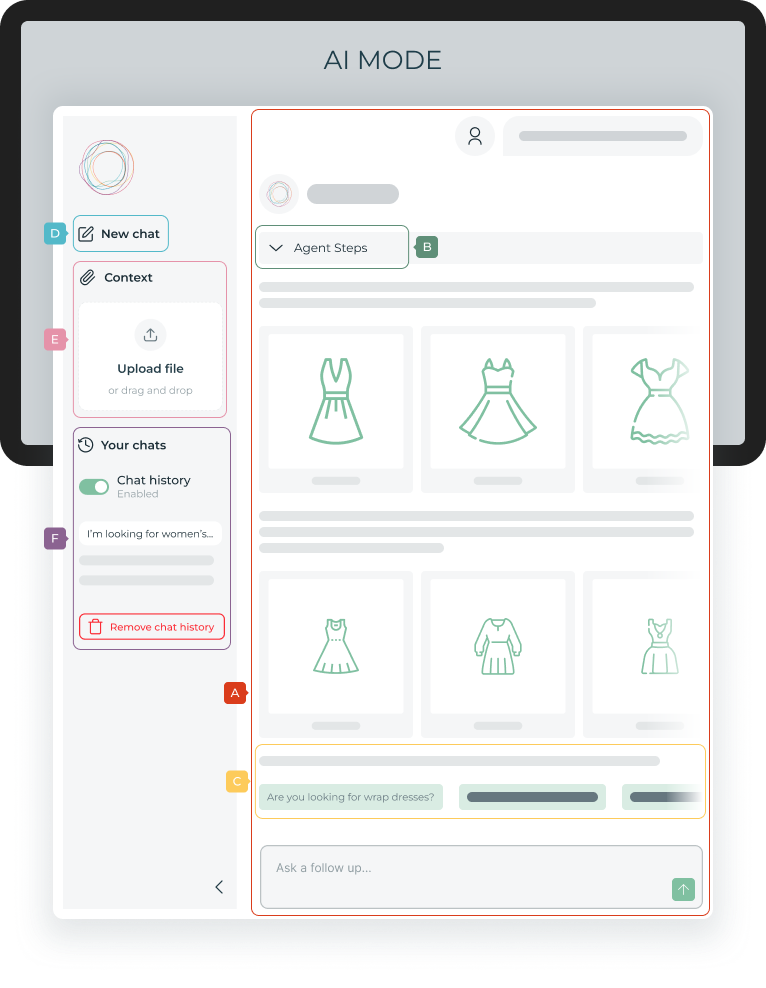
AI Mode conversation layout — (A) Conversation thread, (B) Agent steps, (C) Follow-up questions, (D) New chat, (E) Document context, (F) Chat history.
The AI Mode conversational interface includes two main panes: the conversation thread and the sidebar.
Conversation thread
The conversation thread (A) is where the dialogue between the shopper and the store's catalog unfolds. Each turn appears as a chat message: the shopper's input at the top, followed by the AI response below. Shoppers can enter what they're looking for in their own words using natural, conversational language and refine, redirect, or expand the conversation at any turn, just as if they were talking to an in-store assistant.
If no search has been started yet, the conversation thread opens blank, with search suggestions below the input bar to help shoppers get started. If a keyword search is already in progress when switching to AI Mode, the thread picks it up directly, showing the query and results in the conversational view.
AI responses adapt to the type of search performed: product search or content search. For product search, product card carousels appear with detailed product information such as photo, title, price, and a product description generated from the catalog. Clicking on a product card redirects the shopper to the corresponding product page.
note
Every product search response aligns with your catalog and merchandising logic. Ranking rules, promotions, and business logic configured in the Playboard remain fully in effect for AI Mode results, as long as AI Mode uses the same query configured in the Playboard tools.
The thread keeps the full conversation visible so shoppers can track how their intent has evolved and where the results are coming from.
At the end of each conversation turn, AI Mode can suggest follow-up questions (C) to keep the conversation going, offering shoppers new search suggestions that build on earlier context without restarting. Follow-up questions make conversations fluid and quick with just one click, avoiding the need to type long queries.
From the sidebar, shoppers can start a new conversation (D) at any point. Clicking New chat opens a new conversation thread. The previous thread is stored in the Chat history, if activated.
Agent Steps
The Agent Steps dropdown (B) appears with each response and shows how AI Mode resolved the shopper's query. It indicates whether the response came from a catalog search or a document search, making the process transparent and inspectable:
- Catalog search: AI Mode translated the conversational input into a structured catalog query and retrieved matching products.
- Document search: AI Mode detected a non-product intent, such as a question about delivery or returns, and resolved it from the store's uploaded documents.
Shoppers can switch between both intent types within the same conversation. A question about return policies followed immediately by a product question is handled seamlessly, one after the other.
Sidebar
The AI Mode sidebar includes search features and controls to add extra context that boost content search capabilities, and browse past searches.
Document context
The document context pane (E) lets merchandisers upload store-specific content so AI Mode can answer questions that go beyond the product catalog. This includes delivery and return policies, billing and payment information, physical store locations and opening hours, FAQs, and any other store-related content you choose to provide.
When a shopper's question is non-product-related, AI Mode detects the intent and resolves it from the uploaded documents rather than the catalog. Each store has its own isolated context: documents uploaded for one instance are never mixed with those of another.
Merchandisers can upload a maximum of 10 documents of up to 50 MB each, providing up to 500 MB of content search context in total.
Uploading documents
To upload documents to AI Mode, you authenticate directly from the search bar using your Empathy Platform credentials. Make sure you have the appropriate permissions for the instance you're uploading to.
- Open AI Mode in your store.
- Type
::loginin the conversational search bar and press Enter. - Enter your Empathy Platform credentials. Once authenticated, the Context section appears in the document context pane (E).
- Drag and drop the files you want to use as context into the Upload file area. You can upload up to 10 files in total for your store.
- Once the upload completes, the documents are available as context immediately. Submit a relevant query in the conversation thread to test that AI Mode resolves it correctly.
Important
Document context is only available in AI Mode. Uploaded documents don't affect standard keyword-based search results.
Document upload considerations
- Supported formats: PDF, MD, DOC, DOCX, RTF, XLS, XLSX, TXT.
- File limits: Maximum 10 documents, 50 MB each.
- File naming recommendations:
- Avoid spaces in file names. Use hyphens or underscores instead:
return-policy.pdf. - Avoid special characters:
#,&,%,@, and similar.
- Avoid spaces in file names. Use hyphens or underscores instead:
- Only authenticated people with permission for a specific instance can view and manage uploaded documents.
- Each instance maintains its own isolated document context.
Chat history
The chat history pane (F) displays all conversations the shopper has started in AI Mode. They can return to a previous conversation and pick up where they left off, with context intact.
Shoppers can turn chat history on or off. When it's turned off, conversations aren't saved and can't be recovered. When it's turned on, history is stored locally in the shopper's browser, not on Empathy's infrastructure, and is never sent to third-party services.