

Configure the AI Mode Context parameters
The AI Mode Context section allows you to configure the context for AI-based, conversational features such as Related Prompts and AI Mode, ensuring that question and suggestion generation align with your store's specific characteristics and the experience you want shoppers to have. By fine‑tuning tone, style, intent, and a range of business‑specific parameters, you can ensure that the output aligns with the brand voice and the particular needs of each store instance.
Related Prompts feature and its capabilities provided by the batch process and the Beacon API in charge of their synthetic generation.
warning
Only Playboard users with permissions for Instance Management can set up and edit the AI Mode Context settings.
When you access the AI Mode Context configuration form for the first time, the Deactivated label appears beside the section name in the side menu. This means that there is no active configuration for the service. After you create the configuration, you need to activate the AI Mode Context settings.
Configuring AI Mode Context settings
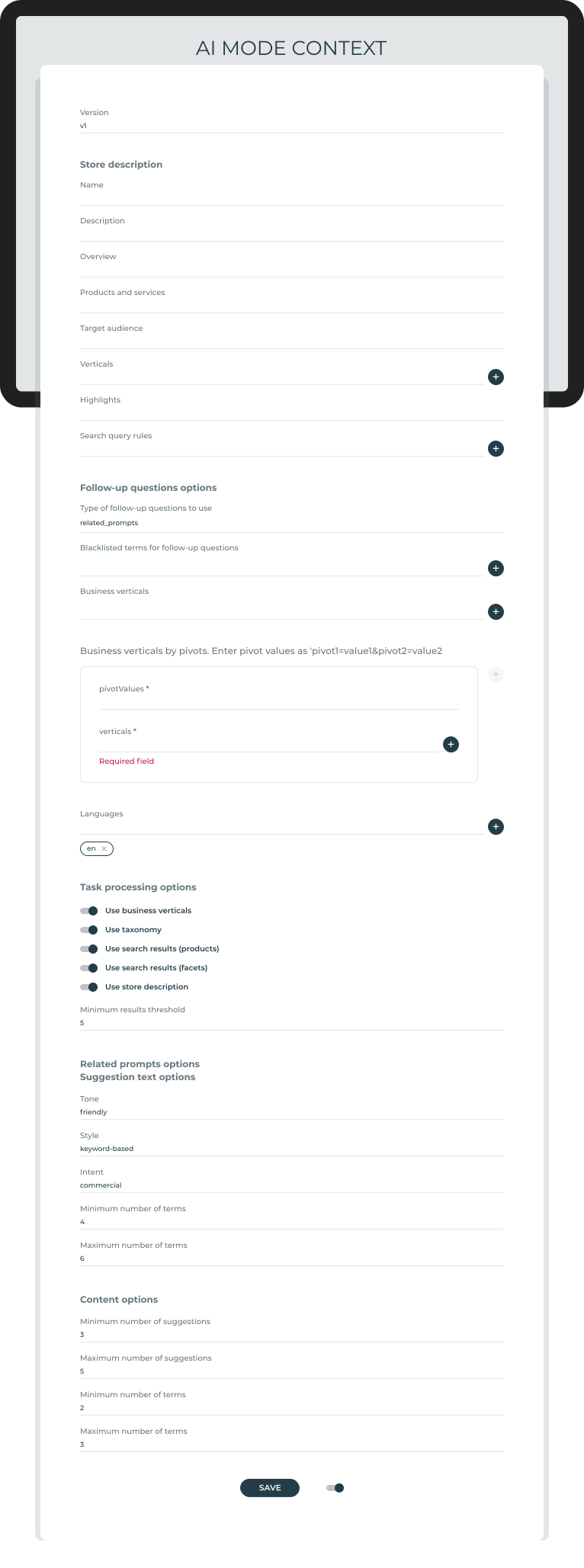
Configure the following fields to set preferences and options for generating questions and suggestions that are displayed as Related Prompts, AI Carousels, or AI Mode (some of which are follow-up questions).
- Version: Version of the current configuration to be used for the traceability of the generated questions.
Store description: In this section, add the information related to the instance store for personalizing the experience.
- Name: Name of the store instance.
- Description: Summary of the store.
- Overview: General information about the store.
- Products and services: Description of products and services offered.
- Target audience: Description of intended shoppers.
- Verticals: Sectors or industries the store serves.
- Highlights: Key features or benefits of the store.
- Search query rules: Rules to guide the search queries generated from user input. For example:
- If asked for X, search Y.
- Prioritize new products.
- Use adjectives (such as child, young, adult, senior, etc.) instead of person age.
Follow-up questions options: In this section, configure the options for follow-up questions generation.
- Type of follow-up questions to use: The configurable types of follow-up questions can be:
- 'DYNAMIC': generated on the fly using available chat history and store description fields contexts.
- 'RELATED_PROMPTS': Related Prompts statically generated.
- 'OFF': no follow-up questions.
- Blacklisted terms for follow-up questions:: Terms to exclude only from on-the-fly follow-up question generation. Useful to avoid specific words, topics, and brands or trademarks in the generated follow-up questions.
- Business verticals: Business sectors for the store that are used to give extra context for the suggestions generation. You can indicate one or more options.
- Business verticals by pivots: Business vertical values to override the instance business verticals that are based on pivots. Used to narrow down the business domain when it depends on pivot values. The pivot values must follow the format:
pivot1=value1&pivot2=value2, wherepivotrefers to the current instance vertical, andvalueindicates the overriding vertical to be applied.- pivotValues: Pair of pivot-value to override the verticals.
- verticals: Business verticals applicable to the pivot-value combinations.
- Languages: Languages supported for generating questions. This applies to suggestion text and search queries. The first value is the default language.
Task processing options: In this section, configure optional sources of context that can be combined as extra context for the suggestions generation.
- Use business verticals: When active, adds business verticals information.
- Use taxonomy: When active, includes the domain’s category and attribute meta-definitions, resolved by vertical or instance.
- Use search results (products): When active, uses the catalog search results from the query performed (first results page).
- Use search results (facets): When active, uses search result facets from the query performed. Facets represent aggregations by categories and attributes.
- Use store description: When active, adds store details.
- Minimum results threshold: Minimum number of results that a query must have to not be discarded during the suggestions generation.
Question options: In this section, configure the settings around the content of the suggestions generated.
- Suggestion text options: Options for the text of the suggestions generated.
- Tone: Way of addressing the user.
- Style: Way of formulating the sentence.
- Intent: Purpose or direction of the suggestions.
- Minimum number of terms: Minimum number of words composing the suggestion.
- Maximum number of terms: Maximum number of words composing the suggestion.
Content Options: In this section, configure the options for the suggestions generated.
- Minimum number of suggestions: Minimum number of related prompts in the content.
- Maximum number of suggestions: Maximum number of related prompts in the content.
- Minimum number of terms: Minimum number of words in the suggested related prompts.
- Maximum number of terms: Maximum number of words in the suggested related prompts.
Activating AI Mode Context
Once you have updated the configuration and clicked Save, you need to activate the AI Mode Context settings by turning On the toggle switch.